
How to Change Your Camera in MultiVersus
Optimize your MultiVersus gameplay by tweaking display settings. Learn how to change your camera in MultiVersus for less cluttered visuals
Tweaking the camera and display settings in MultiVersus can significantly enhance your gameplay experience. Although the zoom level can't be adjusted, you can make other changes to improve visibility and reduce clutter. Here’s a guide on how to change your camera in MultiVersus.
Accessing Camera Settings in MultiVersus
Opening the Settings Menu
To begin customizing your display settings, follow these steps:
- Start the game and go to the main menu.
- Navigate to Settings.
- Select the Interface tab.

Customizable Display Settings
While the camera zoom level cannot be adjusted, you can change other settings to improve visibility. Here’s how to change your camera in MultiVersus by tweaking UI elements:
Scoreboard Position
- Set Position to Bottom
- This frees up more space in the air for the larger characters.
Damage Position
- Set Position to Scoreboard
- This removes visual clutter by limiting moving UI elements.
Cooldown Position
- Set Position to Scoreboard
- Keeping cooldowns static on the scoreboard allows you to check them in the same spot every time.
Dodge Meter Position
- Set Position to Player
- If you use characters with high mobility, keeping the dodge meter on your character can be helpful.
Player Name Position
- Set Position to Scoreboard
- Removing player names from the screen frees up a significant amount of visual space.
Character Outlines
- Toggle On/Off for Self, Allies, and Enemies
- Adjust the color of outlines to improve visibility.
Suggested Settings for a Clearer Display
By customizing these settings, you can reduce screen clutter and make the larger character models more manageable. Here are the recommended settings:
- Scoreboard Position: Bottom
- Damage Position: Scoreboard
- Cooldown Position: Scoreboard
- Dodge Meter Position: Player
- Player Name Position: Scoreboard
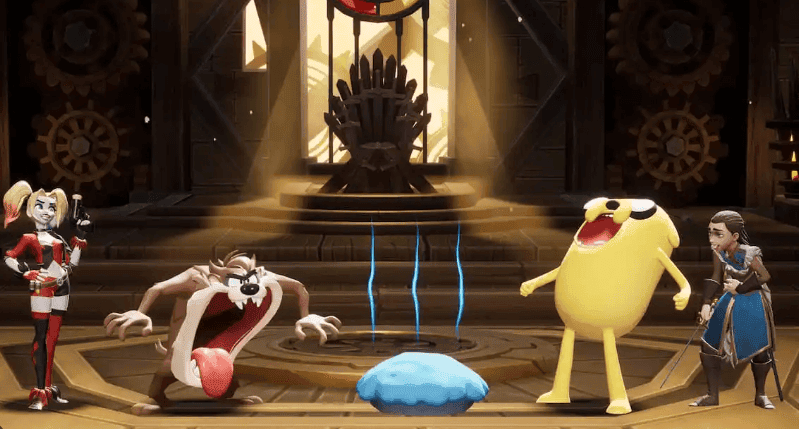
Using these settings, you can minimize overlap between UI elements and character models, making the screen feel less crowded.
Conclusion
Although you can't change the camera zoom level in MultiVersus, you can tweak other display settings to improve your experience. Adjusting the position of UI elements can make the game more enjoyable and less visually cluttered. Follow this guide on how to change your camera in MultiVersus and optimize your settings for better gameplay.
David Ware is the Founder and Managing Editor of iGame Magazine. Since 2024 he has built igamemag.com into a trusted online destination for gamers and tech enthusiasts, covering the latest gaming news, in-depth game reviews, hardware and tech breakdowns, and practical guides.
How we write: every article is researched from official sources, such as developer posts, store pages and press releases, then fact-checked and edited by David Ware before it's published. We use AI tools to help with research and drafting.
Related on iGame
 More GuidesPermafrost Guide: Beginner Tips, Co-op, Dedicated Servers and Early Access RoadmapOct 9, 2026
  More GuidesDayZ Badlands Guide: 12 Beginner Tips to Survive NasdaraOct 9, 2026
  More GuidesEnshrouded 1.0 Mage Guide: New Spells, Wand Skills and Skill Tree ResetOct 9, 2026
  More GuidesSCUM Fishing Guide: How to Catch Big Fish After the October UpdateOct 9, 2026
  More GuidesGamescom 2026: Everything Announced, Award Winners and DatesAug 24, 2026
  More GuidesDayZ Update 1.29 — Complete Guide, Patch Notes & June 2026 HotfixApr 11, 2026