
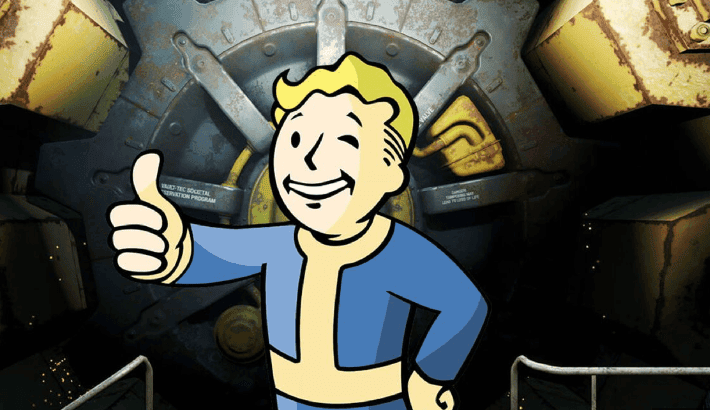
How to Fix Overlapping Dialogue in Fallout 4 Hints & Tips
Discover How to Fix Overlapping Dialogue in Fallout 4. Our guide provides troubleshooting tips to resolve this common problem.
Image: Bethesda SoftworksOverlapping dialogue can be a frustrating issue for players of Fallout 4, hindering their ability to gather vital information from NPCs. Fortunately, there are solutions to rectify this problem, ensuring a smoother gaming experience. Here's a step-by-step guide on how to fix overlapping dialogue in Fallout 4.
Understanding the Issue
If you're encountering overlapping dialogue in Fallout 4, it's likely due to your frame rates exceeding a specific value. The game engine, Bethesda's Creation Engine, utilizes frame rates as a timer. When your frame rates surpass the maximum threshold your PC can handle, dialogue becomes mistimed, resulting in overlap or premature cutoffs.
Implementing Solutions
- Adjust Frame Rate Settings: Begin by adjusting your frame rate settings to ensure they remain within a manageable range. This can be achieved by enabling V-Sync (Vertical Synchronization) in your graphics settings. V-Sync synchronizes your frame rate with your monitor's refresh rate, preventing it from exceeding the maximum threshold.
- Update Graphics Drivers: Ensure your graphics drivers, whether NVIDIA or AMD, are up-to-date. Updated drivers often include optimizations and fixes for gaming performance issues, including dialogue overlap in Fallout 4.

How to Fix Overlapping Dialogue in Fallout 4 if you use Nvidia
- Close Fallout 4
- Open the NVIDIA Control Panel from your Start Menu
- Expand the 3D Settings tree
- Click on Manage 3D Settings
- Select the Program Settings tab
- Select the executable for Fallout 4 under the 'Select a Program to Customize' dropdown
Once you have Fallout 4 selected, you'll want to make the following changes:
- Triple Buffer: On
- Max Frame Render Ahead: 1
- V-Sync: Adaptive

How to fix overlapping dialogue in Fallout 4 if you use AMD
- Go to the Global Readeon menu.
- Enable FreeSync
- Disable Triple Buffering and Verticle Sync.
- Manually set an FPS cap to a number above your maximum FPS value.
If the aforementioned adjustments fail to resolve the issue, another method to address overlapping dialogue in Fallout 4 is by manually adding an FPS Clamp to your Fallout.ini file. This ensures that the game operates at the appropriate FPS based on your system configuration.
Here's how to do so:
- Navigate to the Documents folder.
- Open the My Games folder.
- Go into the Fallout 4 folder.
- Open the Fallout.ini using Notepad or another text editor.
Please keep in mind that this is the standard directory for the fallout.ini file; however, it may differ if you've installed Fallout 4 in an alternative location or relocated files due to any installed mods. Navigate to the [General] section within the fallout.ini file, and input "iFPSClamp=XXX" (without quotation marks). Replace XXX with a number slightly higher than your maximum FPS setting. If necessary, utilize an FPS counter to ascertain this value accurately. By following these steps, you can effectively resolve any overlapping dialogue issues encountered while playing Fallout 4.

Conclusion
By following these simple steps, you can effectively resolve overlapping dialogue issues in Fallout 4 and enhance your overall gaming performance. Whether adjusting frame rate settings or updating graphics drivers, these solutions ensure a smoother and more enjoyable experience when interacting with NPCs. Say goodbye to dialogue overlap and immerse yourself fully in the captivating world of Fallout 4.
Related Articles

David Ware is the Founder and Managing Editor of iGame Magazine. Since 2024 he has built igamemag.com into a trusted online destination for gamers and tech enthusiasts, covering the latest gaming news, in-depth game reviews, hardware and tech breakdowns, and practical guides.
How we write: every article is researched from official sources, such as developer posts, store pages and press releases, then fact-checked and edited by David Ware before it's published. We use AI tools to help with research and drafting.
Related on iGame
 More GuidesIs Resonance: A Plague Tale Legacy on Game Pass? Price, Editions and PlatformsOct 19, 2026
  More GuidesResonance: A Plague Tale Legacy PC Requirements, Steam Deck and Performance FixesOct 19, 2026
  More GuidesResonance: A Plague Tale Legacy Story and Timeline Explained: Where It Fits Before RequiemOct 19, 2026
  More GuidesHow Long Is Resonance: A Plague Tale Legacy? Length, Chapters and Difficulty ExplainedOct 19, 2026
  More GuidesDoes Subnautica 2 Have Dedicated Servers? Multiplayer, Crossplay and Co-op ExplainedOct 17, 2026
  More GuidesWindrose Guide: 15 Tips Every New Captain Should Know (2026)Oct 15, 2026