
ACE COMBAT 8 Crashing on PC? Bandai Namco’s Official Fixes: Turn Off Async Compute and Raise Virtual Memory
ACE COMBAT 8 crashing on PC? Bandai Namco's official fixes: turn Async Compute off and raise Windows virtual memory. Exact settings and what's still coming.

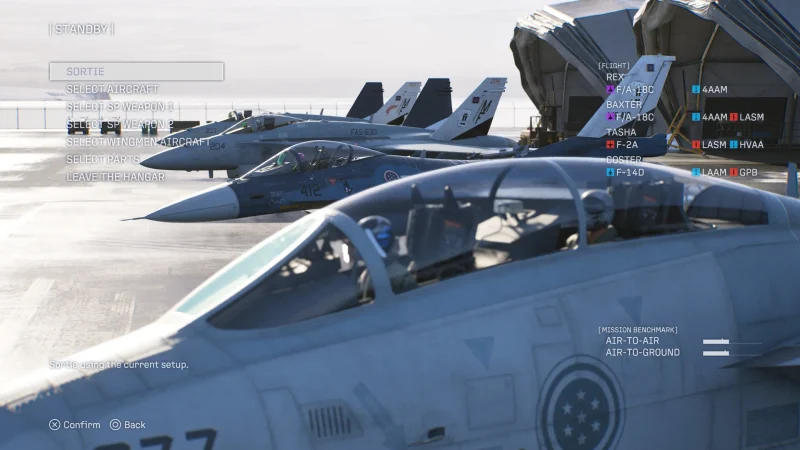
If ACE COMBAT 8 crashing on PC is ruining your sorties, Bandai Namco has now shared two official fixes. In a product notice on 2 November, it said patch Ver. 1.01.002 added an Async Compute setting, and that turning it OFF may stop crashes on some graphics cards. An earlier notice found that raising Windows virtual memory reduces memory-related crashes. Neither is a permanent cure, and Bandai Namco says it's still working on other causes.
ACE COMBAT 8 crash fixes at a glance
| Fix 1 | SYSTEM menu: set Async Compute to OFF (Steam version, supported GPUs only) |
| Fix 2 | Raise Windows virtual memory (16 GB+ with 32 GB RAM; 32 GB+ with 16 GB RAM) |
| Patch needed | Ver. 1.01.002 or later |
| Fewer crashes with | About 48 GB or more of RAM + virtual memory combined (Bandai Namco's testing) |
| Permanent fix | Not yet; Bandai Namco is investigating multiple causes |
How do I stop ACE COMBAT 8 crashing on PC?
Try Bandai Namco's two official workarounds, in this order.
1. Turn off Async Compute
Bandai Namco found that asynchronous computation can affect stability on certain GPU configurations. Patch Ver. 1.01.002 added an option on the Steam version: open the SYSTEM menu and set Async Compute to OFF. If the option is greyed out, your graphics card isn't suited to Async Compute in the first place, so this fix doesn't apply to you.
2. Raise your Windows virtual memory
In its 16 October notice, Bandai Namco said more total available memory (RAM plus Windows virtual memory) reduces certain memory-related crashes. In its testing, PCs with roughly 48 GB or more in total crashed less. Its recommended settings:
- 32 GB of RAM: set virtual memory to 16 GB or more.
- 16 GB of RAM: set virtual memory to 32 GB or more.

How do you change virtual memory in Windows 11?
- Press the Windows key, type "View advanced system settings" and open it.
- Under Performance, click Settings, then the Advanced tab.
- Under Virtual memory, click Change and untick Automatically manage paging file size.
- Pick your fastest drive (ideally the SSD with the game), choose Custom size and enter the amount in MB (16 GB = 16384 MB, 32 GB = 32768 MB) for both initial and maximum size.
- Click Set, then OK, and restart your PC.
These steps are the standard Windows 11 settings; the amounts are Bandai Namco's. Make sure the drive has enough free space for the page file.
Is Bandai Namco fixing the ACE COMBAT 8 crashes?
Yes. Both notices say the team is investigating "multiple potential causes" and working towards a permanent resolution. Bandai Namco also calls the game's current memory usage "a significant issue" and says it's working to reduce it. It apologised for "the prolonged inconvenience".
What did ACE COMBAT 8 patch 1.01.002 fix?
Ver. 1.01.002, released for the Steam version on 23 October, fixed missions that couldn't progress (including Missions 6, 10, 13, 18, 25, 28 and 30), a crash in Mission 11 during Podarge's chain explosion, crashes when sorting aircraft by a role you don't own and on first opening the Aircraft Tree, adjusted Ladon on Elite difficulty in Mission 15, and added the Async Compute option.

What are the ACE COMBAT 8 PC requirements?
They're high, which may be part of the problem. Every PC needs Windows 11, an SSD, a graphics card with hardware ray tracing and DirectX 12 with Shader Model 6.6, and 150 GB of space.
| Minimum (1080p upscaled, 30 fps, Low) | Recommended (1080p upscaled, 60 fps, Medium) | |
| CPU | Intel Core i7-10700K / AMD Ryzen 5 3600X | Intel Core i7-12700K / AMD Ryzen 5 5600X |
| RAM | 16 GB | 32 GB |
| GPU | RTX 2060 / RX 6600 XT | RTX 3070 / RX 6800 |
ACE COMBAT 8 costs £54.99 / $69.99 / €69.99 on Steam. Our ACE COMBAT 8 review roundup covers what critics think.
Watch the ACE COMBAT 8 launch trailer

The official launch trailer plays at the top of the ACE COMBAT 8 Steam page.
More on iGame Magazine
- Ace Combat 8: Wings of Theve Review Roundup: What the Critics Say: what critics think of ACE COMBAT 8
FAQ

David Ware is the Founder and Managing Editor of iGame Magazine. Since 2024 he has built igamemag.com into a trusted online destination for gamers and tech enthusiasts, covering the latest gaming news, in-depth game reviews, hardware and tech breakdowns, and practical guides.
How we write: every article is researched from official sources, such as developer posts, store pages and press releases, then fact-checked and edited by David Ware before it's published. We use AI tools to help with research and drafting.
Related on iGame
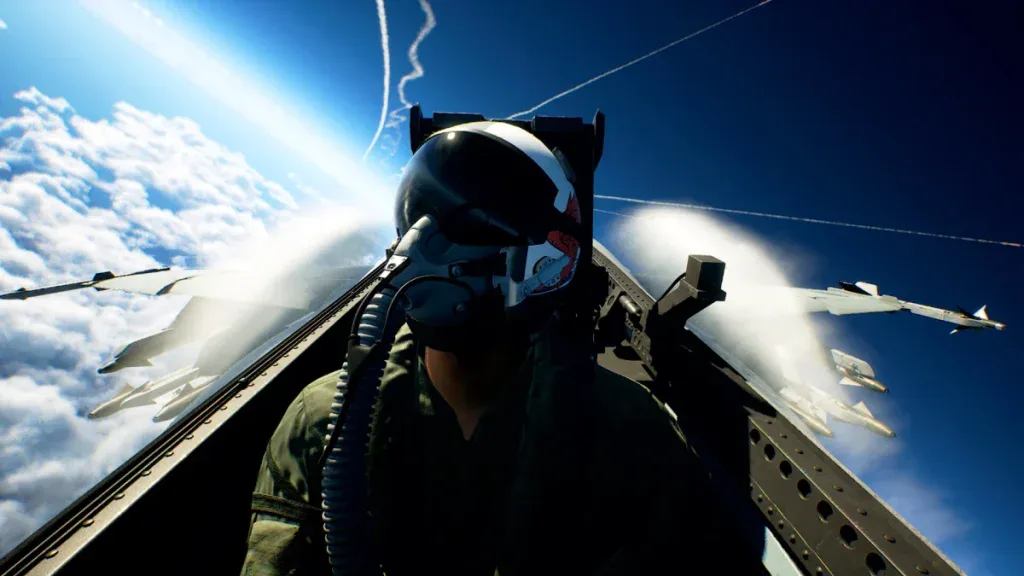 What critics think of ACE COMBAT 8Ace Combat 8: Wings of Theve Review Roundup: What the Critics SayOct 10, 2026
 More GuidesGray Zone Warfare Twitch Drops: Every Rogue Ops Reward, Stage Dates and How to Claim ThemOct 28, 2026
 More GuidesAbiotic Factor Mods Are Here: How to Install Them, Join Modded Servers and Make Your OwnOct 27, 2026
 More GuidesThe Best Survival Games of 2026 So Far, Ranked by Players and CriticsOct 27, 2026
 More GuidesThe Best Games of 2026 So Far, Ranked by CriticsOct 26, 2026
 More GuidesXbox Game Pass: Final Fantasy VII Remake, Mouthwashing and Every Game Coming and Leaving This WeekOct 26, 2026